Wednesday, February 21, 2018

Adding & Using Screencastify


Adding the Screencastify Extension


1. Click the three dot button at the top right corner.

2. Choose More Tools...Extensions…

3. At the bottom of the page that opens, choose Get More Extensions.

4. In the Search The Store box, type Screencastify…

5. When you see this option, click Add to Chrome.



6. You’ll know you have the right extension when you see this icon at the top right of your browser:


Getting Started With Screencastify

1. Click the Screencastify extension icon:

2. Click to sign in with Google...

3. Give Screencastify the permissions it requests…

4. If you’d like to view the Help video, it should allow you to do so...

5. Close the Screencastify setup window and click the extension icon again.

6. The recording options box will open up where you can choose specific criteria for making your video. You can choose to record either a single tab or your entire desktop. You can also choose to include the webcam if you’d like.

7. Videos you create save to your Google Drive.

Wednesday, January 10, 2018

Steps for Using Google Cast

To Reflect from Chromebook to Projector

1. Add the Extension (you only have to do this one time)  

--Go to the Chrome Web Store

--Search for “Google Cast for Education”

--Choose “Add to Chrome”

2. To Create A Casting Receiver (Do this from a computer that is connected to a projector)

--Click the green Google Cast Icon in the top, right  toolbar

---Give your receiver a name (could be just your last name) and choose “Save”

--Add the people you would like to have access to Cast and choose “Add”
-You can add groups of students based on Google Classroom
-You can also add individuals to cast by typing in their email


To Begin Casting (students will follow the same steps at this point)

--Click the three dots in the top right corner, and choose “Cast”

--Before choosing the receiver, be sure to use the drop-down arrow and choose “desktop” or “tab”  (best to select desktop just in case students need to show you multiple items from different sources i.e. google drive doc, a website, etc.)
-Tab will allow you to only cast the tab you are currently on
-Desktop will allow you to cast every tab/screen you navigate to

--Choose the receiver by selecting the receiver name


----In order to change who is casting, the teacher will have to click the “X” in the middle of the screen, and the next person can then request.  You must stop a person from casting before another person can cast or request to cast.  

Thursday, December 7, 2017

MSU's Connected Math Project

Found this great math resource today while searching for Open Educational Resources (OER):  https://connectedmath.msu.edu/the-math/math-by-unit/

From their About page (https://connectedmath.msu.edu/about/) ...

CMP is a problem-centered curriculum promoting an inquiry-based teaching-learning classroom environment. Mathematical ideas are identified and embedded in a carefully sequenced set of tasks and explored in depth to allow students to develop rich mathematical understandings and meaningful skills. The Common Core State Standards for Mathematics (CCSSM) and the Standards for Mathematical Practice are embedded within each problem. The curriculum helps students grow in their ability to reason effectively with information represented in graphic, numeric, symbolic, and verbal forms and to move flexibly among these representations to produce fluency in both conceptual and procedural knowledge.
The overarching goal of the Connected Mathematics Project (CMP) is to help students and teachers develop mathematical knowledge, understanding, and skill along with an awareness of and appreciation for the rich connections among mathematical strands and between mathematics and other disciplines. The CMP curriculum development has been guided by our single mathematical standard:
All students should be able to reason and communicate proficiently in mathematics. They should have knowledge of and skill in the use of the vocabulary, forms of representation, materials, tools, techniques, and intellectual methods of the discipline of mathematics, including the ability to define and solve problems with reason, insight, inventiveness, and technical proficiency.

Thursday, November 30, 2017

Want to add audio narration to your Google Slides (or students' Slides)?

Adding audio is pretty simple once you get the proper add-on.  Unfortunately, Slides does not allow you to insert audio files, but with the Screencastify add-on, you can record a video, then shrink that video on the slide or hide it behind a text box, leaving the audio narration playing.

Here is a handout I shared with my students.  It includes some simple how-to videos from another teacher who used Screencastify with her class.  I'm happy to help if this is something you would like to use in your classes!


Tuesday, November 28, 2017

How to Print a Poster from a PDF

Got a PDF you want to turn into a poster on the poster maker?? Here's how:

1.  Open up the PDF file in Adobe Reader -- you can easily do this by double clicking on the download of the file. HOWEVER, you can't print this way from the preview of the file in the Internet.


2. Click File...Print...


3. In the preview of the print, notice how the page size is 8.5 x 11...


4. Click Properties at the top of the print window...


5. Click Page Setup...


6. In the drop-down beside Page Size, choose the size you want the PDF to print as...


7. Once you've chosen the size, put a checkmark in the box beside Enlarged/Reduced Printing...


8. Click OK...


9. Now notice that the preview shows your poster at the size you selected...Click OK to print.


Ambient Sounds

From Monica...

For those of you who hate absolute silence in your classroom, or just want to embrace your inner nerd a bit more, there is a fantastic website called ambient-mixer.com. 

There, you can listen to the sounds of Gryffindor's Common Room or Bilbo Baggins' Home.  You can also just listen to nature sounds and other ambient sounds.  The best part is, you can create your own mixes!  

How fun would it be to allow your students to create an ambient mix for tests and seat work?  Or even for a book setting?

Oops! I Didn't Mean to Close That Tab!

This ever happen to YOU?? Close a tab by accident? Check out this Chrome shortcut:

Ctrl + Shift + t

Pinterest Boards

Do you Pinterest??  Spend lots of time pinning food you might wanna cook, crafts you might wanna craft, clothes you wish you could buy....  Why not spend a little of that time adding to the PGM Pinterest boards? I've created the following boards, and I would love to add you to them!

https://www.pinterest.com/themorins/pgm-technology/

https://www.pinterest.com/themorins/pgm-ela/

https://www.pinterest.com/themorins/pgm-math/

https://www.pinterest.com/themorins/pgm-science/

https://www.pinterest.com/themorins/pgm-social-studies/

https://www.pinterest.com/themorins/pgm-general/

https://www.pinterest.com/themorins/pgm-media-center/

https://www.pinterest.com/themorins/pgm-art/

https://www.pinterest.com/themorins/pgm-stem/

https://www.pinterest.com/themorins/pgm-sped/

https://www.pinterest.com/themorins/gafe/

https://www.pinterest.com/themorins/pgm-differentiation/

https://www.pinterest.com/themorins/pgm-makerspace/

https://www.pinterest.com/themorins/literacy/

https://www.pinterest.com/themorins/pgm-displays/

https://www.pinterest.com/themorins/oer/

Using the ClearTouch Panel and TVs in STEM Lab

If you want to use the ClearTouch Panel in the STEM Lab and have the display on the ClearTouch display to each TV, here are directions for setting that up...

1.  Turn on the power to the ClearTouch Panel with the power button at the bottom right and use one of the remotes to turn on both TVs.

2. Log in to the ClearTouch Panel with your computer login.


3. When the TVs come on, they will identify themselves as PGM1 or PGM2 and will have a unique four-digit code.


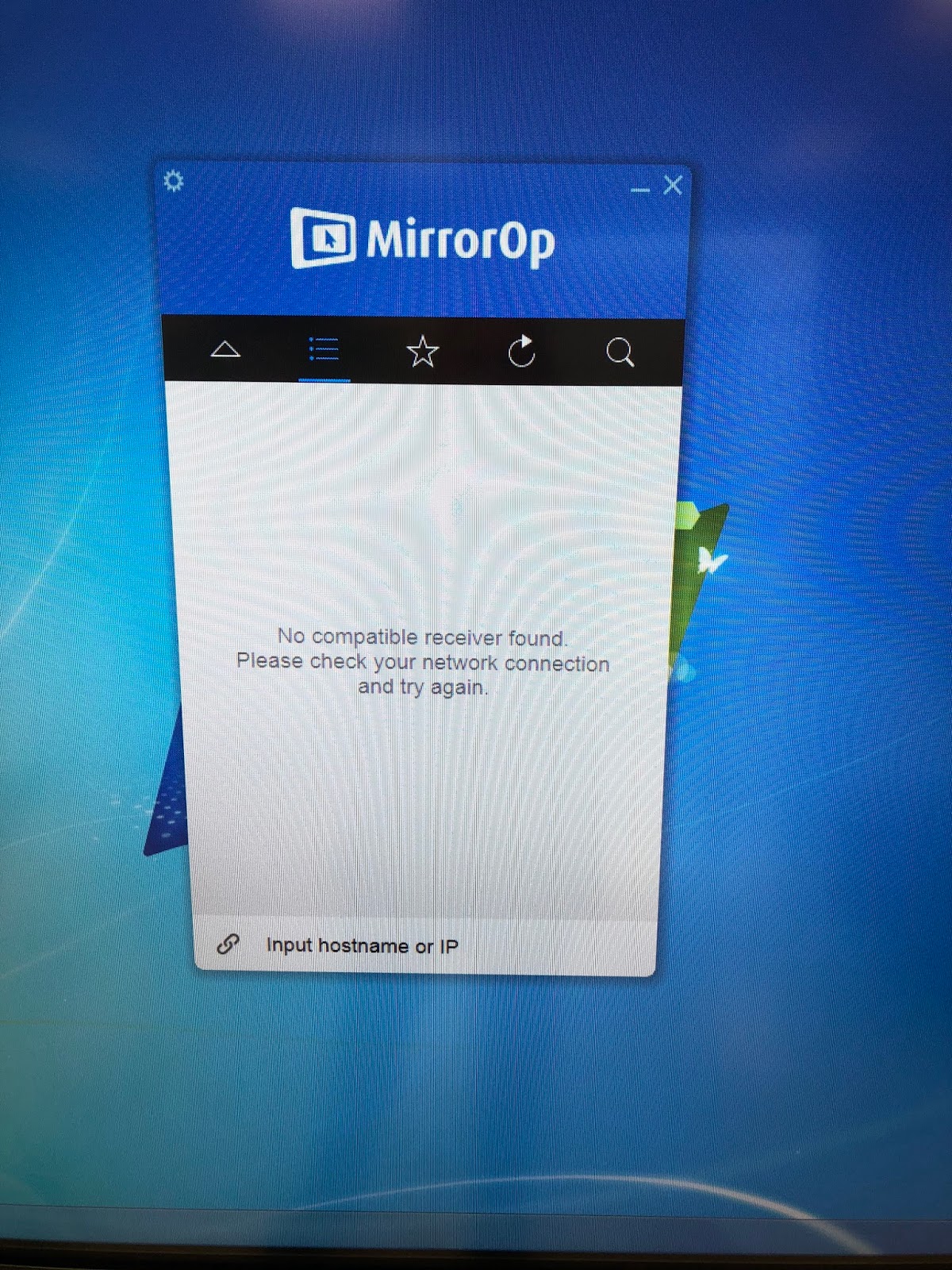
4. On the ClearTouch Panel, click and open the MirrorOp program.
5. The MirrorOp software will open up and at the bottom where it says "Input hostname or IP"...
6. Type PGM1 (it's not case sensitive) and click CONNECT.

7. You will then be prompted to type in the four-digit code that is displayed on the TV designated as PGM1. (Note...a new code is generated each time you use these devices.)
8. Now, at the bottom where it says "Input hostname or IP" type in PGM2 to connect to the second TV in the STEM Lab.
9. You will then be prompted to enter the four-digit code that is displayed on the TV designated as PGM 2.
10. You will be asked whether you want multiple displays (the ClearTouch displays on BOTH TVs) or switch to this display (instead of displaying on PGM1, you'll now display on PGM2). Choose Multiple.

11. MirrorOp will identify that it's ready for Multiple Displays...Click the play button to send the ClearTouch display to both TVs.
12. The ClearTouch images will be farmed out to both TVs.